
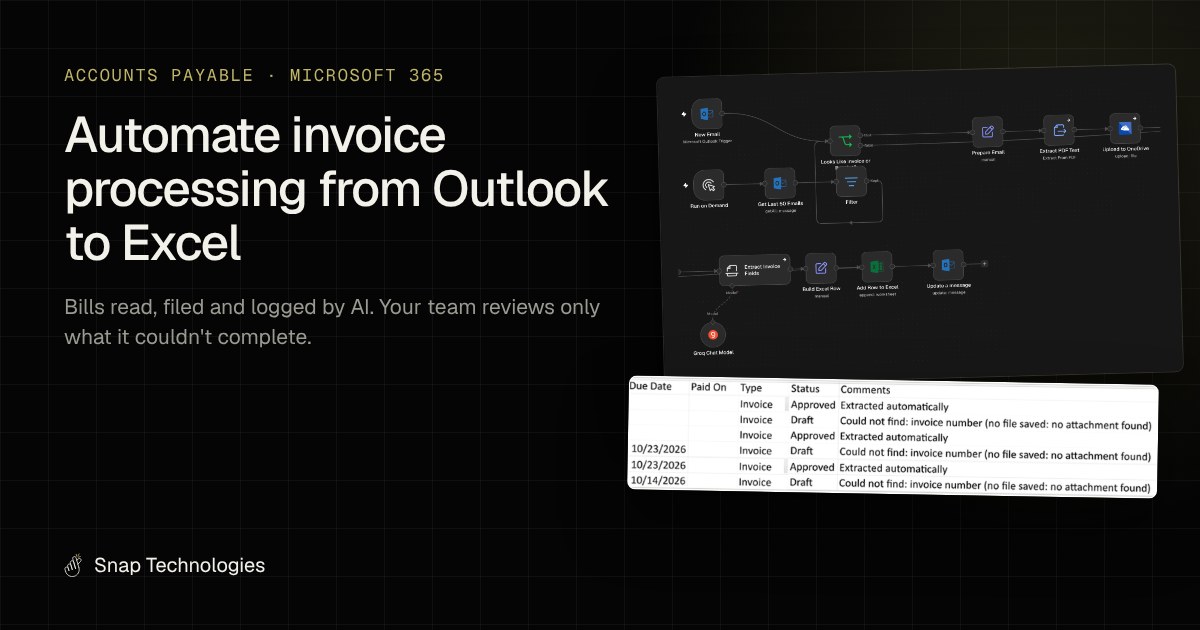
If your suppliers email their invoices, your accounts payable process probably starts in a shared Outlook inbox. A person opens each email, downloads the PDF, saves it to a folder, and keys the invoice number, supplier and amount into a spreadsheet. That work grows with every new supplier, and every retyped amount is a chance for an error that shows up later at month-end close.
We built a workflow that automates invoice processing for finance teams on Microsoft 365. It reads invoices, receipts and bills from Outlook, files each PDF in OneDrive, extracts the key fields with AI and logs one row per bill in Excel. Your team checks only the rows the AI couldn’t complete.
What gets automated
Every incoming email goes through the same seven steps:
- The email is picked up from Outlook with its attachments.
- The subject and preview are checked for words like invoice, receipt, bill or payment due. Anything else is skipped.
- The text inside the attached PDF is read.
- The original PDF is saved to a OneDrive folder you choose.
- An AI model extracts the invoice number, supplier, tax ID, amount, due date and payment date.
- One row is added to an Excel sheet, with a link to the saved PDF.
- The email is tagged in Outlook as Processed.
The workflow runs on n8n, an open-source automation tool, and checks the inbox every minute. A separate backlog scan works through invoices already sitting in the inbox, so you can start with a clean register on day one.
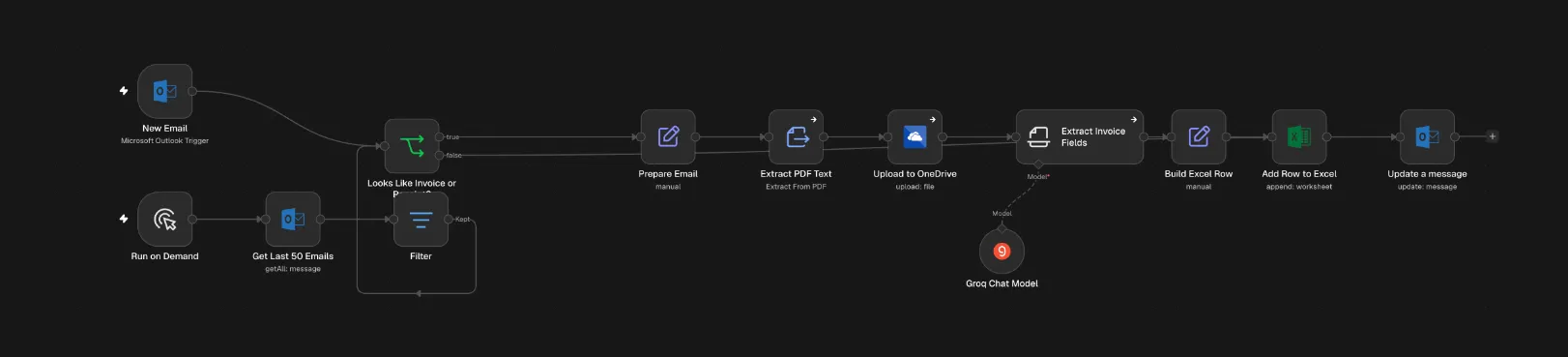
The top row handles new email as it arrives. The bottom row is the backlog scan, which filters out anything already tagged Processed before joining the same path.
What lands in your Excel register
Each bill becomes one row with 13 columns:
| Column | What it holds |
|---|---|
| Invoice Number | Invoice, bill or receipt number |
| Company Name | The supplier that issued the document |
| Tax ID | The supplier’s VAT or GST number |
| Amount | Total to pay, or total paid |
| Due Date | Payment due date |
| Paid On | Payment date, only if the document says it was paid |
| Type | Invoice (still to pay) or Receipt (already paid) |
| Link | The saved PDF in OneDrive |
| Status | Approved or Draft (see below) |
| Comments | Which fields need checking |
| Email From | The sender’s address |
| Subject | The email subject |
| Received | When the email arrived |
Here is part of our own register, with supplier names, invoice numbers, tax IDs, amounts and links blurred:

The Draft rows here came from bills sent as text in the email body, with no PDF attached. The workflow still logged the supplier and amount, plus the due date where the email gave one, and flagged the missing invoice number for a person to fill in.
Due Date and Type together give you a working view of what is owed and when. Filter the sheet to unpaid invoices due this month and you have a rough cash-out list without opening a single email.
The controls built in
The obvious question about AI in finance is what happens when it gets something wrong. The workflow is set up to make those errors visible.
The AI is instructed to use only what is clearly written in the email or the PDF, to leave a field empty when it can’t find it, and never to guess. We chose that rule because a plausible wrong amount is much harder to catch in review than a blank cell.
Blank fields then decide the Status. A row is marked Approved only when the invoice number, supplier name and amount were all found. If any of the three is missing, the row is marked Draft and the Comments column names what is missing. Approved here means the data is complete. It does not mean the bill is approved for payment. Your team reviews the Draft rows and spot-checks the rest, rather than keying in every bill.
Every row links to the original PDF in OneDrive and records who sent it and when. Anyone checking a number, including your auditors, can open the source document in one click.
Each processed email gets an Outlook category called Processed, and the workflow skips any email that already has it. Running the backlog scan twice will not create a second row for the same bill, and your team can see in Outlook which emails have been handled.
What stays with your team
The workflow records bills. It doesn’t approve or pay them, and it has no access to your bank or accounting system. Payment approval and segregation of duties work exactly as they do today.
It also has limits you should know before rolling it out:
- Scanned PDFs that are images with no text layer can’t be read, so those rows land as Draft. An OCR step fixes this if many of your suppliers send scans.
- Only the first PDF in an email is read. An email carrying several invoices needs a person to log the rest.
- An invoice email that uses none of the trigger words in its subject or preview is skipped. The word list can be widened to match how your suppliers write.
- The workflow doesn’t match invoices against purchase orders or goods receipts. Three-way matching is a separate step we can add.
Where your invoice data goes
Outlook, OneDrive and Excel stay inside your own Microsoft 365 tenant. We self-host the workflow tool on infrastructure we control, and you can run it on your own servers or cloud account if your policy requires it.
The one step that sends invoice text outside Microsoft 365 is the AI extraction. The email text and up to 12,000 characters of PDF text go to the AI model provider. We use an open model hosted by Groq, and you can swap in a provider your IT and data-protection teams have already approved, including Azure OpenAI inside your Azure tenant.
Will it pay off for your team?
You can estimate this from two numbers you already have: how many supplier invoices arrive by email each month, and how many minutes it takes to open, file and key in one.
Multiply them to get the hours your team spends on data entry each month. With the workflow, that time shrinks to reviewing Draft rows and spot-checking the rest. The share of rows that land as Draft depends on your suppliers. Clean digital PDFs extract well, while scans and unusual layouts need more review. The pilot below measures your real Draft rate on your own invoices before you commit to anything wider.
How the pilot works
Your finance team doesn’t have to build or configure any of this. When you join our free AI pilot, our team sets up the workflow inside your own Microsoft 365 tenant and connects it to the inbox and Excel register you choose. We run the backlog scan, compare its rows with invoices your team has already keyed in, and tune the trigger words to how your suppliers write.
For the next two to four weeks, your team reviews only the Draft rows while we track the Draft rate and every correction. At the end you have real numbers for your own invoices, and you decide whether to extend it to more inboxes or connect it to your accounting system.
Common next steps after the pilot are posting Approved rows into the accounting system, sending Draft rows to a Teams channel for review, and adding approval routing by amount.
To see another workflow we built, read how we find a decision-maker’s verified work email for about 2.5 cents.
Frequently asked questions
Does the AI approve or pay invoices?
No. It extracts data and adds rows to an Excel register. Approval and payment stay with your team and your existing controls.
What happens when the AI can’t read an invoice?
The missing fields are left empty, and the row is marked Draft with a comment naming what is missing, so a person checks it.
Is invoice data sent outside our company?
Outlook, OneDrive and Excel stay in your Microsoft 365 tenant. The extraction step sends the email and PDF text to the AI model provider you choose, which can be one your IT team has already approved.
Can the same invoice be logged twice?
No. Each processed email is tagged Processed in Outlook, and the workflow skips any email that already has the tag.
Does it work with our accounting system?
Today it writes to Excel. Posting complete rows into Xero, QuickBooks or another accounting system is a common next step.